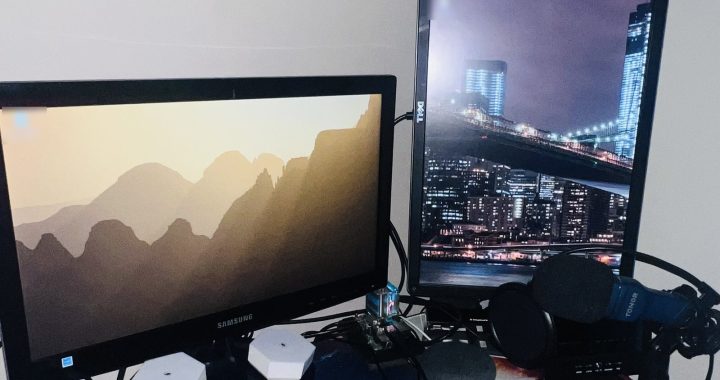
There’s probably a computer in your house doing nothing: a Mac mini that got replaced, a Raspberry Pi from a finished project, a small PC in a drawer. Any of them can become a home server for files, films, backups and smart-home apps.
What stops most people isn’t the hardware. It’s being told to install Linux and then configure everything over SSH. ZimaOS and CasaOS remove most of that: both give you a web dashboard and an app store, so adding a media server or a private cloud is a button instead of a config file. This is the blog version of my ZimaOS and CasaOS guide on GitHub, with the hardware rules spelled out — because not every system runs on every machine.
ZimaOS or CasaOS?
Both come from the same company, IceWhale, and look alike. The difference is how they install.
| ZimaOS | CasaOS | |
|---|---|---|
| What it is | A complete operating system — it replaces whatever is on the drive | A dashboard that installs on top of a Linux you already have |
| Runs on | x86-64 computers with UEFI only (Intel or AMD) | Debian, Ubuntu and Raspberry Pi OS, on x86-64 and ARM |
| Minimum memory | 4 GB (8 GB recommended) | Light — it runs comfortably on a Raspberry Pi 4 |
| Best when | You want an appliance-style NAS with the fewest decisions | You want a normal Linux system underneath, or you’re on a Raspberry Pi |
Source for the requirements: ZimaOS and CasaOS, from the projects themselves. Check them again before you buy hardware — requirements change between releases.
Which machine can run which
| Your hardware | ZimaOS | CasaOS |
|---|---|---|
| Intel Mac mini (2018 and earlier) | Yes — it’s an x86-64 machine | Yes, after installing Debian or Ubuntu on it |
| Apple silicon Mac mini (M1 and later) | No | Not natively — CasaOS doesn’t support macOS (only inside a Linux virtual machine) |
| Raspberry Pi 4 or 5 | No — ZimaOS has no ARM build | Yes, on Raspberry Pi OS (64-bit) |
| Intel or AMD mini PC | Yes | Yes, on Debian or Ubuntu |
Whatever you pick: installing ZimaOS, or installing Linux for CasaOS, erases the drive you install to. Copy off anything you want to keep first.
Installing ZimaOS on an Intel Mac mini or a mini PC
- Download the latest ZimaOS image from zimaspace.com.
- Write it to a USB stick (8 GB or larger) with balenaEtcher, or Rufus on Windows.
- Plug in a keyboard, monitor and the USB stick, then boot from the stick: on a Mac mini hold the Option (⌥) key while it powers on and pick the USB drive; on a PC, open the boot menu or the BIOS/UEFI setup (usually F2, F10, F12 or Delete during start-up) and choose the stick.
- Follow the installer, choose the internal drive as the target, and let it restart.
- From another computer on the same network, open the address the server shows after it boots — or find its IP in your router’s list of devices — and create your admin account.
Installing CasaOS on a Raspberry Pi
- In Raspberry Pi Imager choose Raspberry Pi OS Lite (64-bit). In the settings, set a hostname, a username and password, and enable SSH (and Wi-Fi if you’re not using a cable).
- Boot the Pi, connect to it with
ssh [email protected], and update it:sudo apt update && sudo apt upgrade -y - Install CasaOS with the official one-line installer:
curl -fsSL https://get.casaos.io | sudo bash - When it finishes, it prints the address. Open it from another device, usually
http://YOUR_PI_IP, and create your account. If the page doesn’t load, give the services a few more minutes to start.
A tip from running my own Pi as a server: if you can, boot from an SSD over USB instead of a microSD card. SD cards don’t like the constant small writes that apps and databases make. I explain my setup in how I run this website on a Raspberry Pi 4.
Installing CasaOS on a mini PC or an Intel Mac mini
Install Debian or Ubuntu Server first (the same boot-from-USB steps as above), update it, and run the same installer:
sudo apt update && sudo apt upgrade -y
curl -fsSL https://get.casaos.io | sudo bash
ip -4 addr show | grep inet     # find the address to open in your browser
Five things to run on it first
- A media server — Jellyfin or Plex. Point it at your film and music folders and stream to the TV and your phone.
- A private cloud drive — Nextcloud: your own “Google Drive” with phone photo backup.
- A smart-home hub — Home Assistant, to connect devices from different brands in one place.
- Network-wide ad blocking — Pi-hole or AdGuard Home. Set your router to use the server as its DNS so every device benefits.
- Backups — whatever you store here, keep a second copy on another drive.
Each app installs as a Docker container from the app store. Want to reach them away from home? That’s the next guide: remote access for free with DuckDNS, Nginx Proxy Manager and HTTPS.
Troubleshooting
- The dashboard won’t load. Use the IP address instead of a
.localname, make sure you’re on the same network, and give a freshly installed server a few minutes. - An app won’t install. Check free space with
df -h, then trysudo systemctl restart docker. - An external drive doesn’t show up. Check the cable and power first. For a drive that stays connected to a Linux server, ext4 is the most reliable format; exFAT is the choice if you also plug it into Windows or a Mac.
- Something else wants port 80. CasaOS’s dashboard uses port 80 by default. You can move it by changing
port=under[gateway]in/etc/casaos/gateway.iniand runningsudo systemctl restart casaos-gateway. - Updating CasaOS.
curl -fsSL https://get.casaos.io/update | sudo bash.
Frequently asked questions
Can I install ZimaOS on a Raspberry Pi?
No. ZimaOS is built for x86-64 computers with UEFI. On a Raspberry Pi, use CasaOS on top of Raspberry Pi OS — it gives you the same kind of dashboard.
Can I run CasaOS on my Mac?
Not on macOS itself. On an Intel Mac mini you can replace macOS with Debian or Ubuntu and then install CasaOS, or install ZimaOS directly.
How much memory do I need?
ZimaOS asks for at least 4 GB. CasaOS is lighter, but each app adds its own needs — a media server that converts video uses far more than a file share.
Is it hard to undo?
No. ZimaOS is reinstalled like any operating system, and CasaOS can be removed from the Linux underneath with its casaos-uninstall command.
The original guide, with every step for each machine, is on GitHub.